
Yes, you can add a discount to individual products inside a Quote Block in Zomentum. This lets you offer special, product-level pricing directly within your quote, without changing the base product price or building a separate line item.
Step 1: Add a Discount to a Product
In the Quote Block, after adding your product, click directly into the discount field next to that product and type in the discount amount.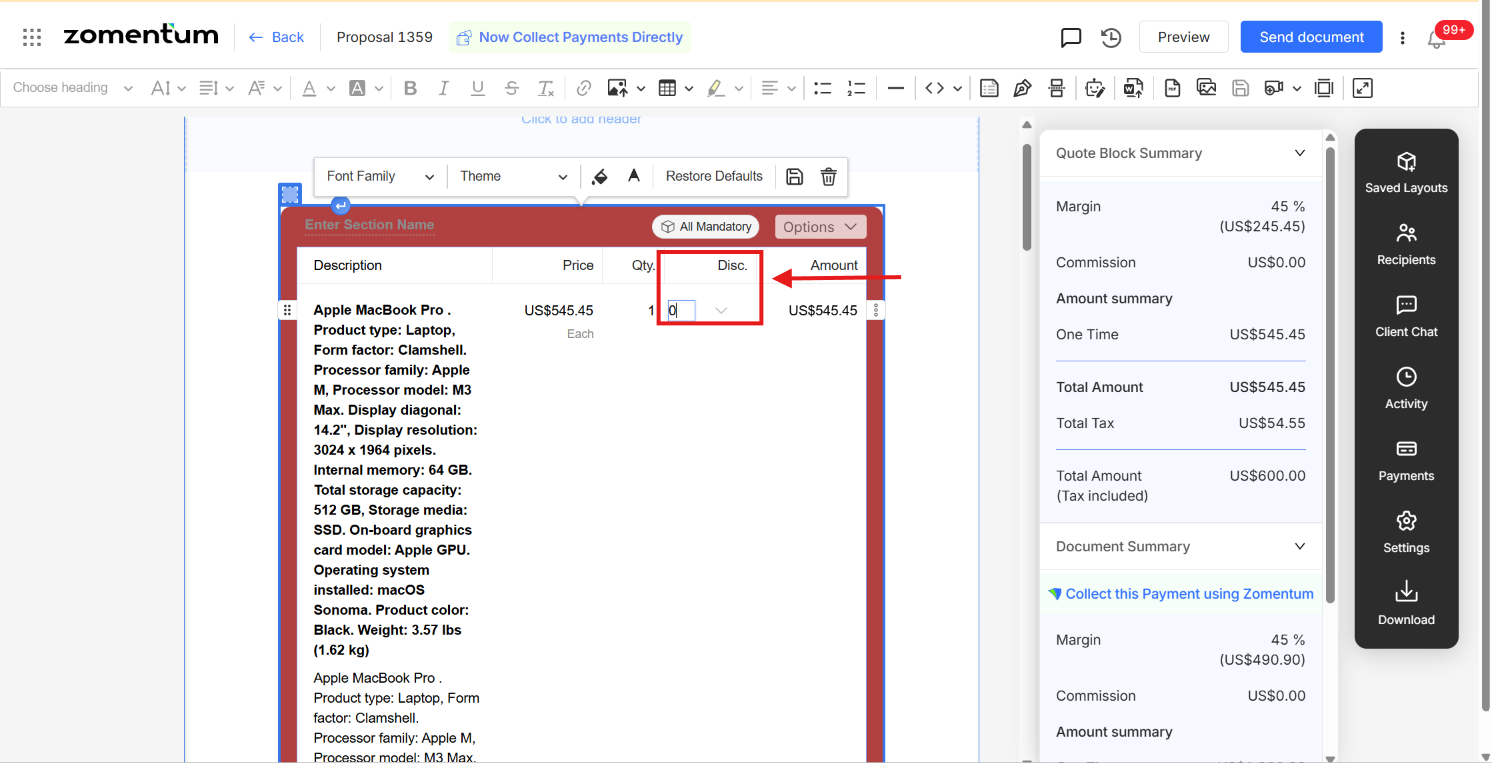
Step 2: Choose the Discount Type
You can apply a discount to a product in two ways:
Percentage - e.g., 5%, 10%, or 50% off the product price.
Flat amount (currency) - e.g., $20 off the product price.
Click the dropdown arrow next to the discount field to switch between Percentage and Flat Amount. This lets you apply the discount type that best fits each individual product in the quote.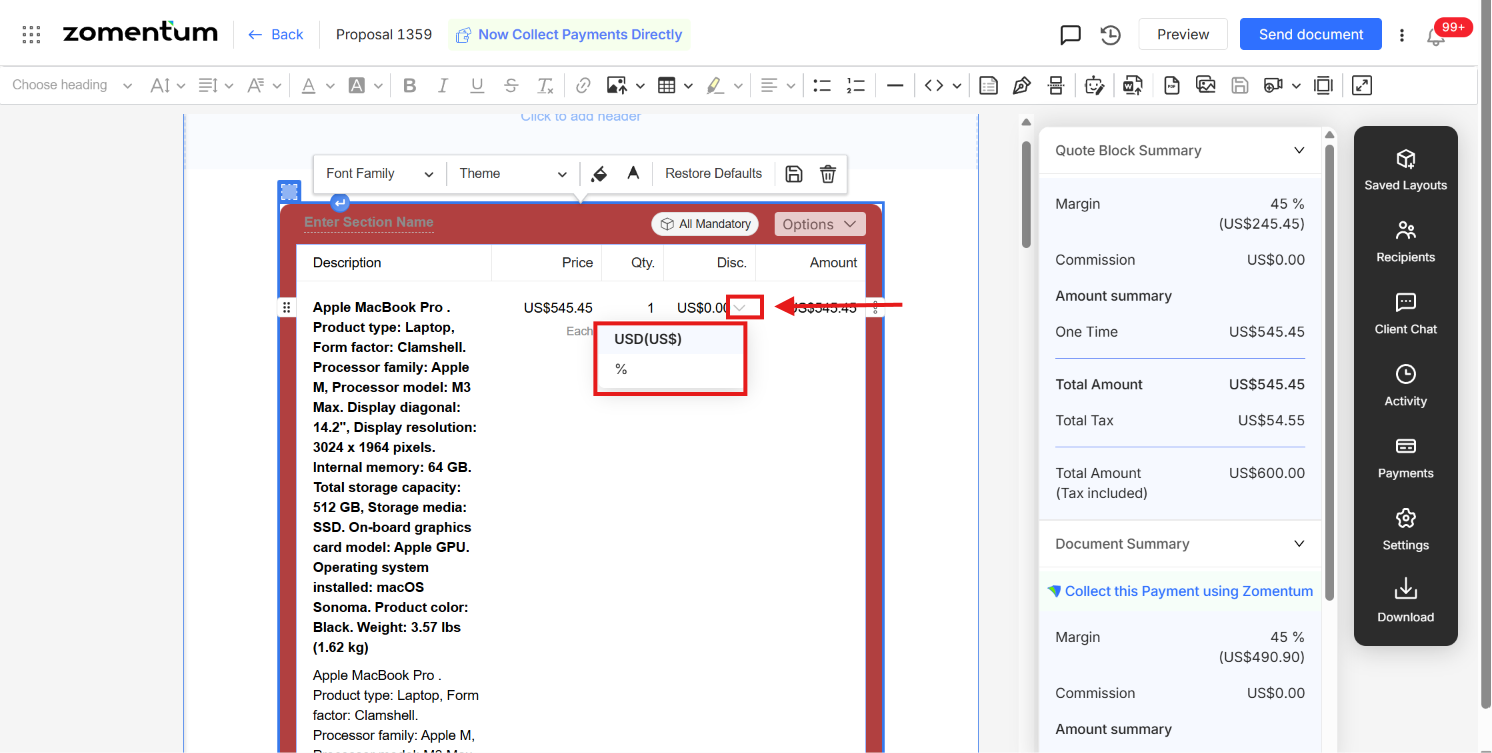
Step 3: Show or Hide the Discount
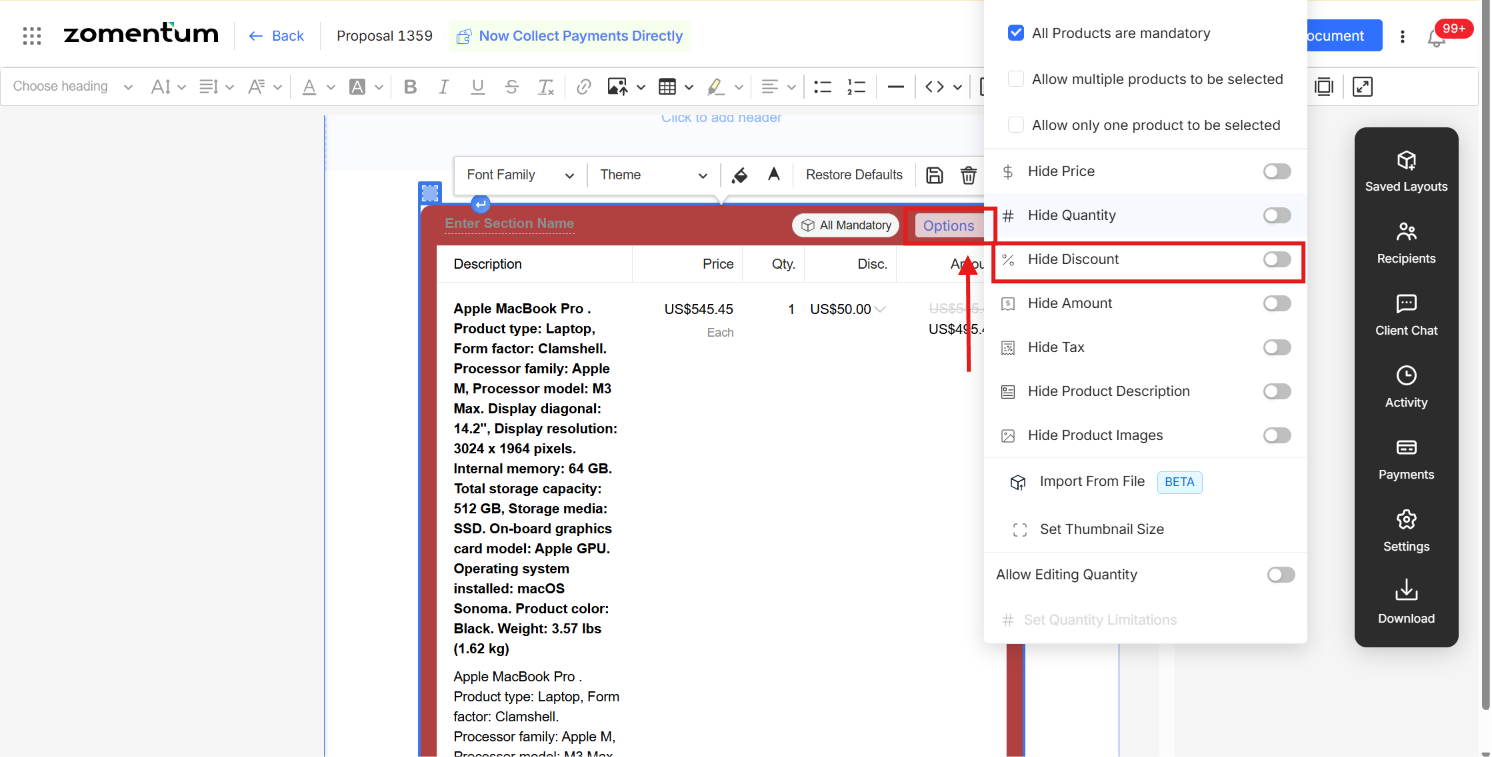
In the Quote Block, click the options to open the block settings. From here, you can toggle Hide Discount on or off:
Toggle off - the discount is shown to the client, along with the original price and discounted price.
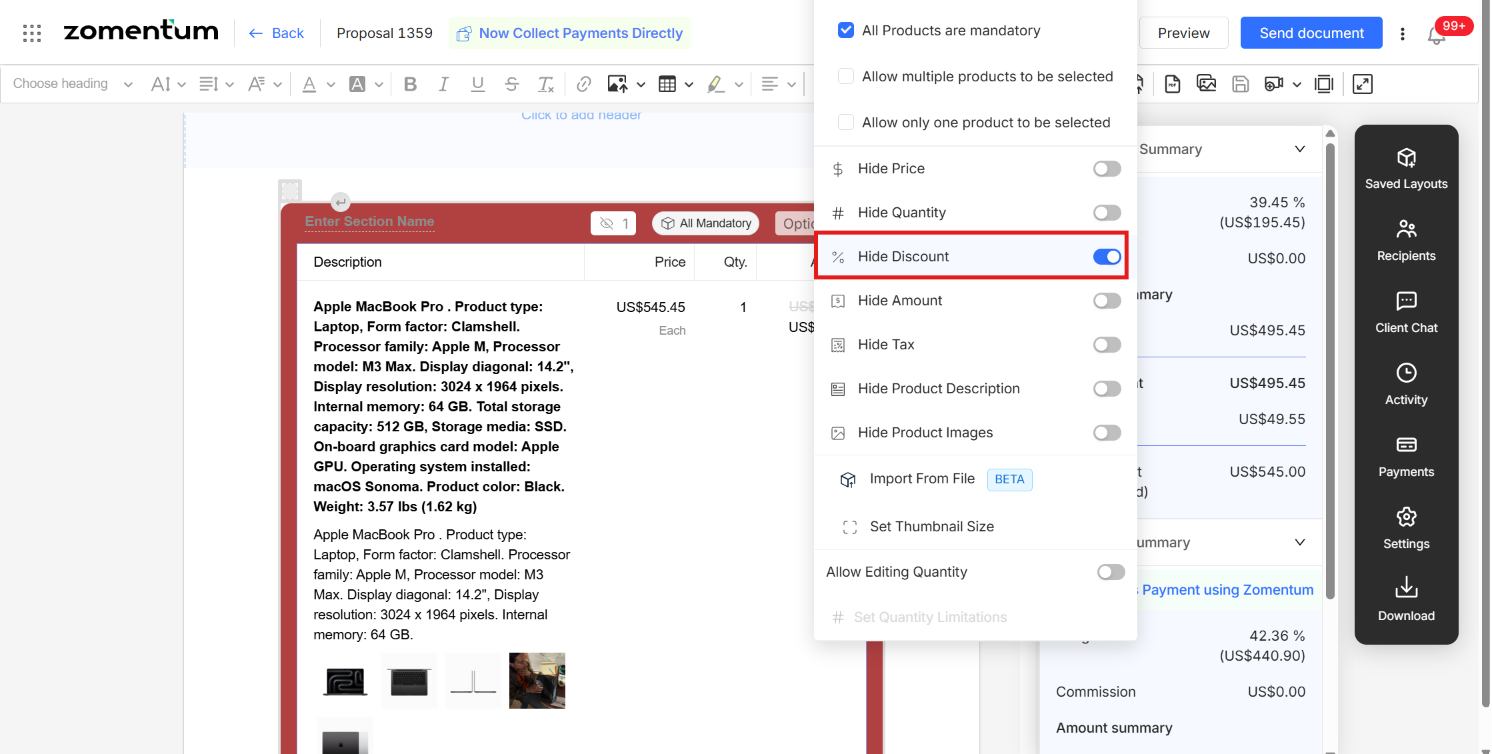
- Toggle on - the discount is hidden from the client, and only the final discounted price is shown.
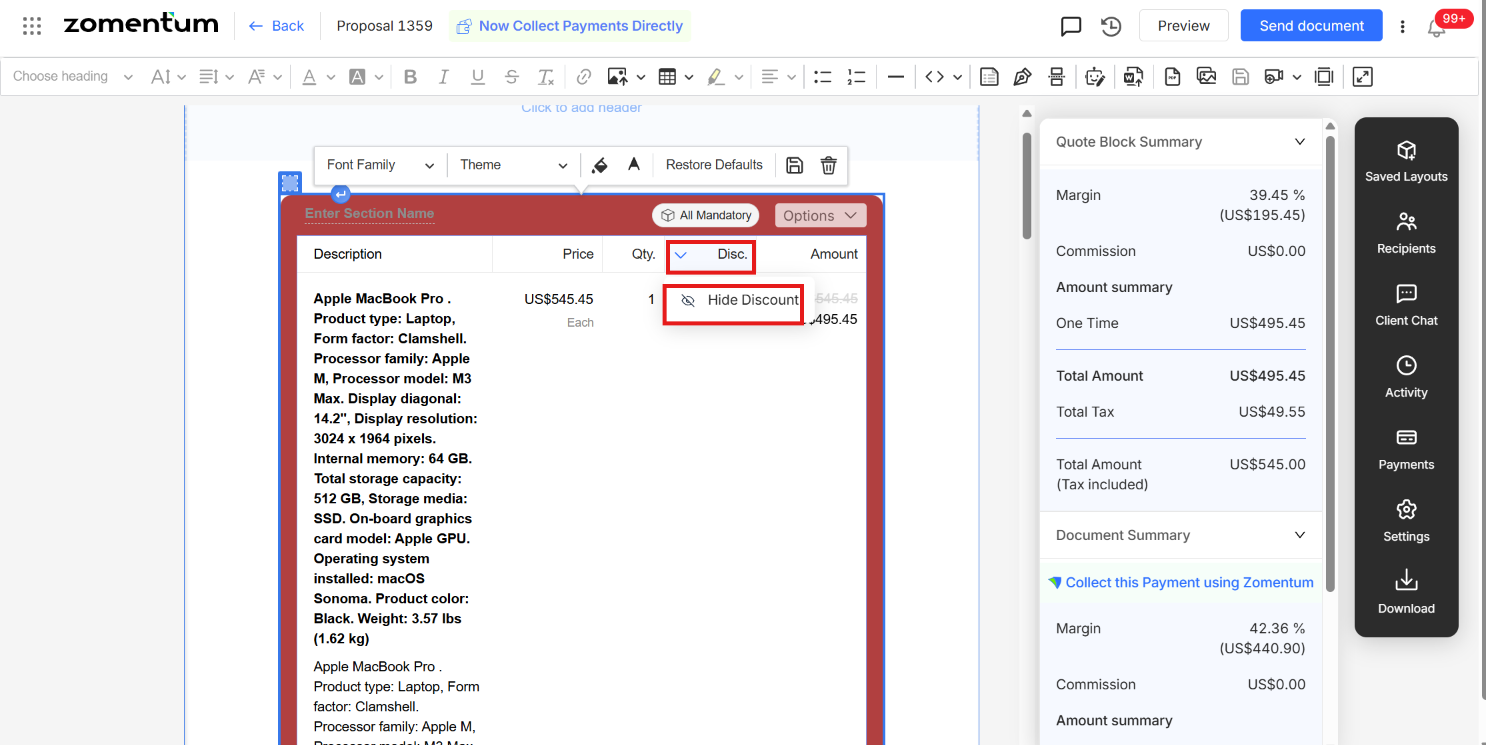
What the Client Sees
Depending on your Show/Hide setting, the client will either see the original price, the discount applied, and the final discounted price, or simply the final discounted price with no breakdown.